Enable an identity verification method for your GoDaddy account
For better account security, set up an identity verification method. After you add a verification method, we'll ask you to validate your identity (using a one-time code or a hardware security key) during high-risk actions or if we detect suspicious login attempts. Otherwise, all you need to sign in is your GoDaddy username and password.
Note: You can not use a telephone service like Conversations or Google Voice for SMS text messaging with a verification method.
- Go to your GoDaddy Security page. You might be prompted to sign in.
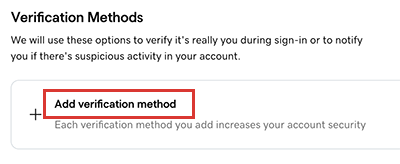
- In the Security list, below Verification Methods, select Add verification method.
- Choose the verification method you'd like to use:
- GoDaddy app (recommended): We suggest you use our GoDaddy app for identity verification. Most GoDaddy account holders should choose this method. Learn more about using the GoDaddy app as an identity verification method.
- Authenticator app: Use a third-party authenticator app like Google Authenticator or Authy to create the code.
- Passkey: A passkey lets you verify your identity and sign in securely using your fingerprint, face, screen lock, or a security key. We recommended using a passkey if you're a domain investor or want the highest level of security. We support USB or Bluetooth-enabled security keys that meet the FIDO U2F standard, such as many YubiKeys or Google Titan.
- Phone number: The code will be sent to your phone number as a text. This method is a convenient option, but may not be as reliable as authenticator apps if you're outside the service area of your cellular provider.
- Select Next, and then complete the setup process according to the method you selected:
- If you selected GoDaddy app, follow the instructions to install the GoDaddy app (if necessary) and enable identity verification on the app.
- If you selected Authenticator App, follow the instructions to install an app on your phone and scan the barcode. Enter the authentication code and the name of the app, then select Next.
- If you selected Passkey, enter a name for the Passkey and then select Add Passkey. If you're setting up a hardware security key, have the key nearby but don't connect it yet. If your browser prompts you to create a passkey, select Continue. Follow the prompts to set up your passkey.
- If you selected Phone number, enter your phone number, then select Next. Enter the 6-digit code we text you (it's good for the next 20 minutes), then select Send Verification Code.
Required: If you selected a passkey, you must add a backup verification method as described next. - Repeat steps 3 and 4 to enable additional verification methods. For best results, set additional methods on a different device. For example, if your default method is the GoDaddy app on your phone, use an authenticator app on your laptop as the backup.
Note: We always recommend that you set up at least one additional verification method as a backup. If you lose access to one of your methods (like if you change your phone number), you can still use the backup to access your account.
Related steps
- If you selected a security key, sign out of your account and then sign in using the hardware key to check your key setup.
More info
- After you enable at least one verification method, you can also enable 2-step verification for enhanced account security.
- Change my verification phone number
Note: Changes to your profile in your GoDaddy My Profile page don’t carry over to identity verification. If you set up SMS text messages for the verification method but change your primary phone number later on, make sure to update your number.
- Cancel an identity verification method
- If your verification method fails and you must contact support for assistance, we'll ask you to share your identity verification method with us to validate your account.